
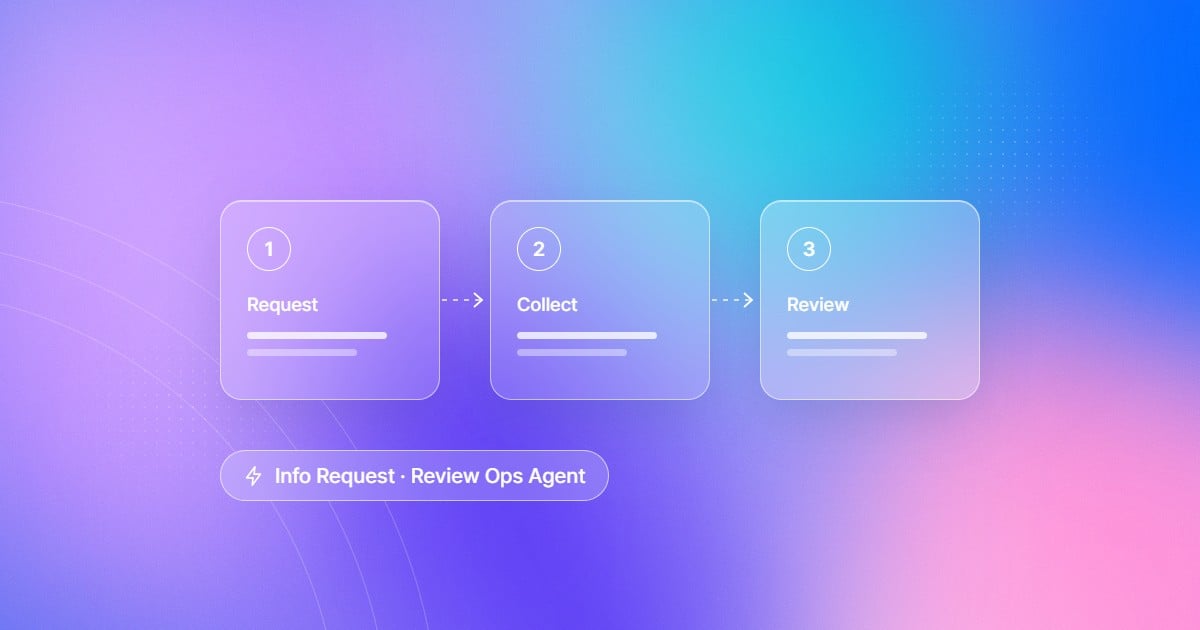
Why document collection slows down every review
Most review teams have already standardized how they review. Collection is where the time goes.- Requests and reminders: Each applicant gets an email, then a follow-up, then another one. Tracking who still owes what lives in inboxes and spreadsheets.
- Questions: Applicants ask which document counts, or whether their situation is a problem. Every question waits for someone on your team to reply.
- Sorting and keying: Files arrive in different formats and names. Someone has to match each file to the right requirement and type the details into the system.
How Info Request works, step by step
1. Define what to collect once, in the workflow
When you build a review workflow, you decide what the applicant needs to provide. Add your policy text, and Omni fills in a draft checklist for you. In the video, it finds four items in the policy: a Certificate of Good Standing, a bank letter or voided check, a business address, and a website or sales channel URL. You check the draft, mark each item as required or optional, and adjust it as needed.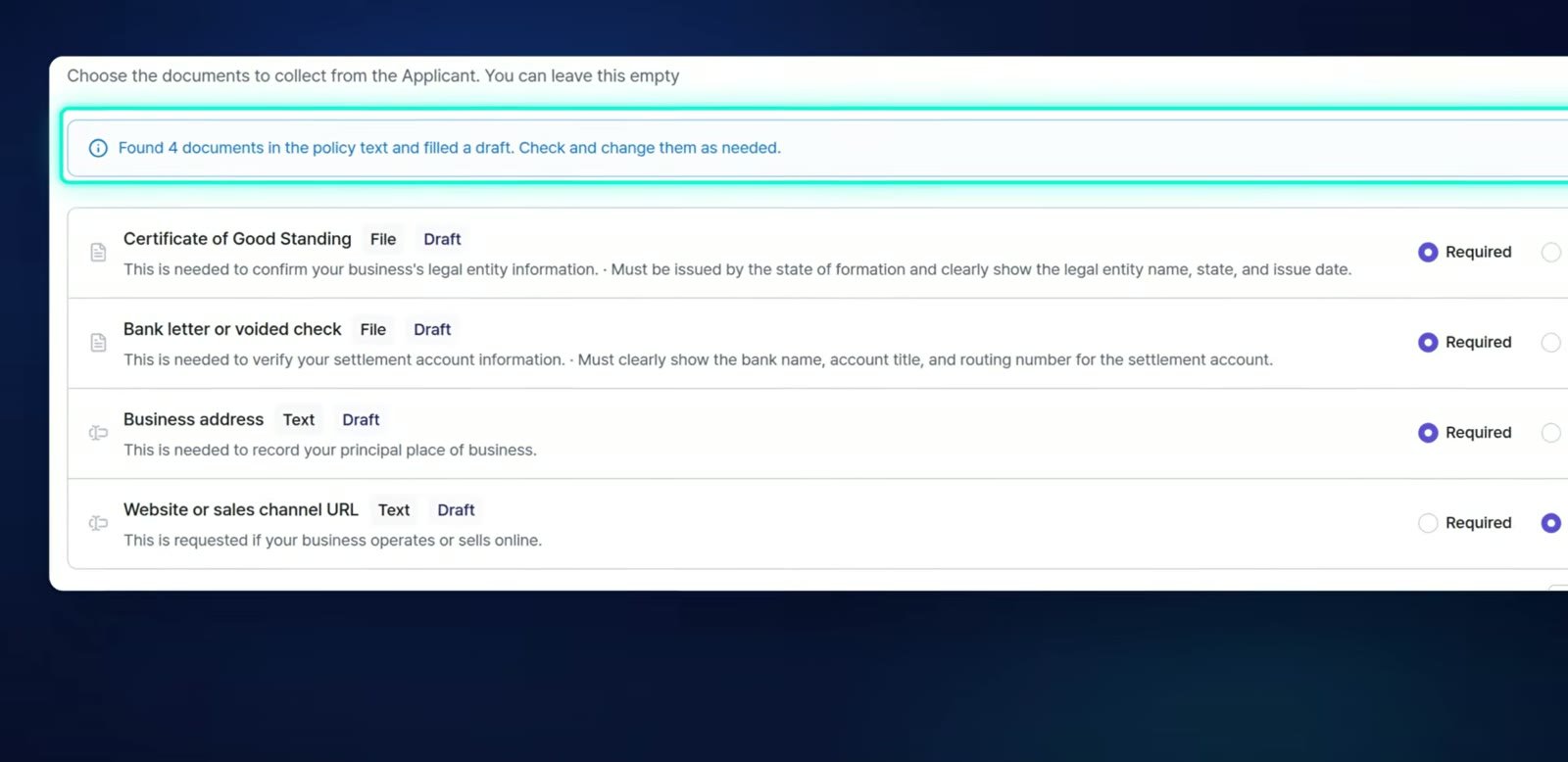
Omni reads the policy text and drafts the list of items to collect (fictional data)
2. Send a request with an email and a deadline
To start a case, you only enter the recipient’s email and a deadline, then send the request. The checklist comes from the workflow, so there is nothing to write from scratch for each applicant.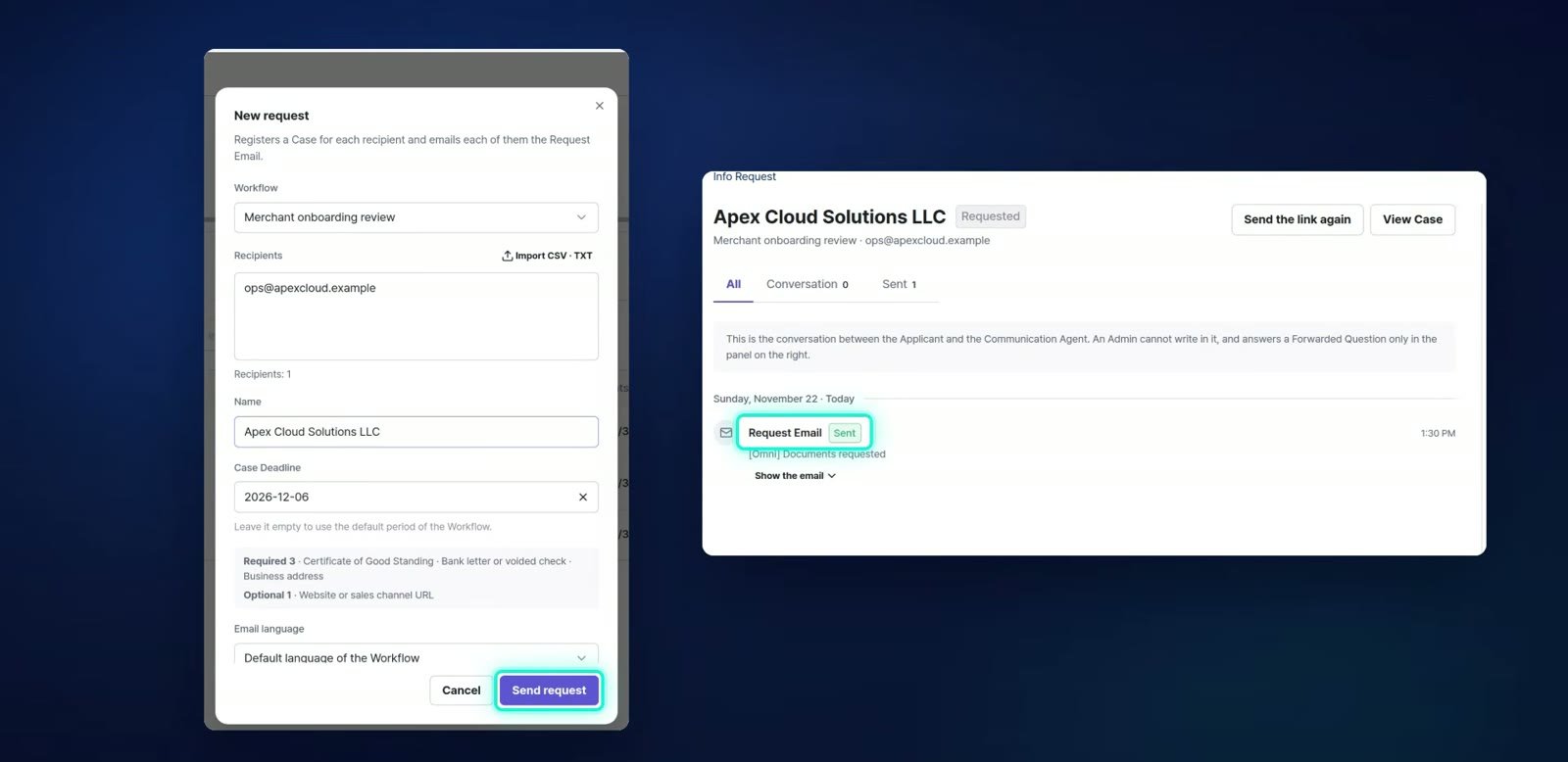
A new request needs only the recipient's email and a case deadline
3. The applicant submits in a conversation
The applicant opens the link in the email and enters the access code sent with it. From there, Omni’s communication agent explains what to submit and by when. Each uploaded file goes straight to its item, and a progress panel shows what is still missing.
The applicant enters with the link and the access code from the email
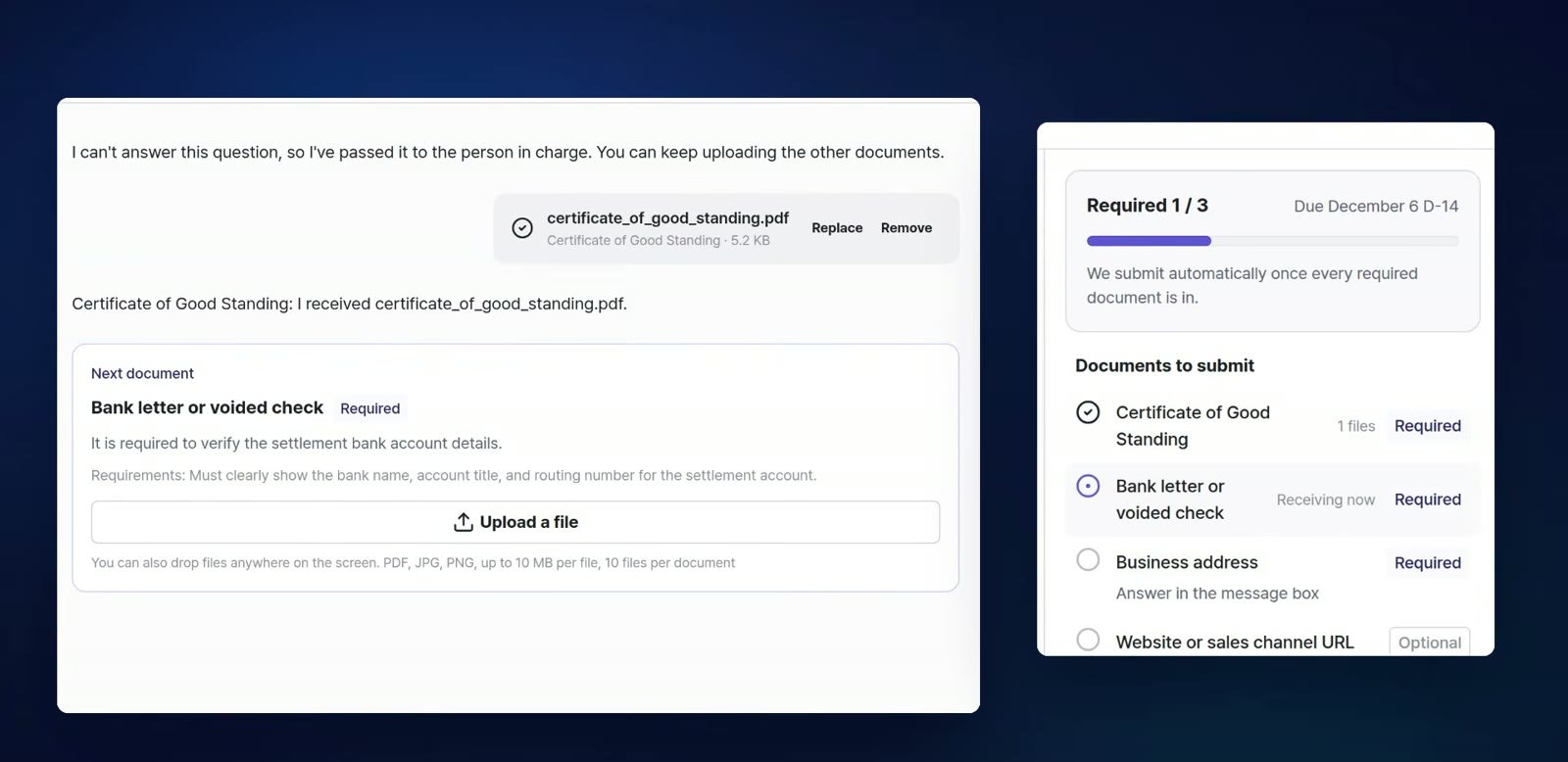
Omni guides the applicant through each item, and each file is matched to its item
4. Answers with a basis, handoffs without one
When the applicant asks a question, Omni answers only when the checklist gives it a basis. In the video, the applicant asks what kind of bank document to send, and Omni explains it from the checklist. Then the applicant asks whether a new account with almost no transaction history is a problem. The checklist does not cover that, so Omni says it cannot answer and passes the question to your team. Your team writes the answer, and Omni delivers it to the applicant unchanged.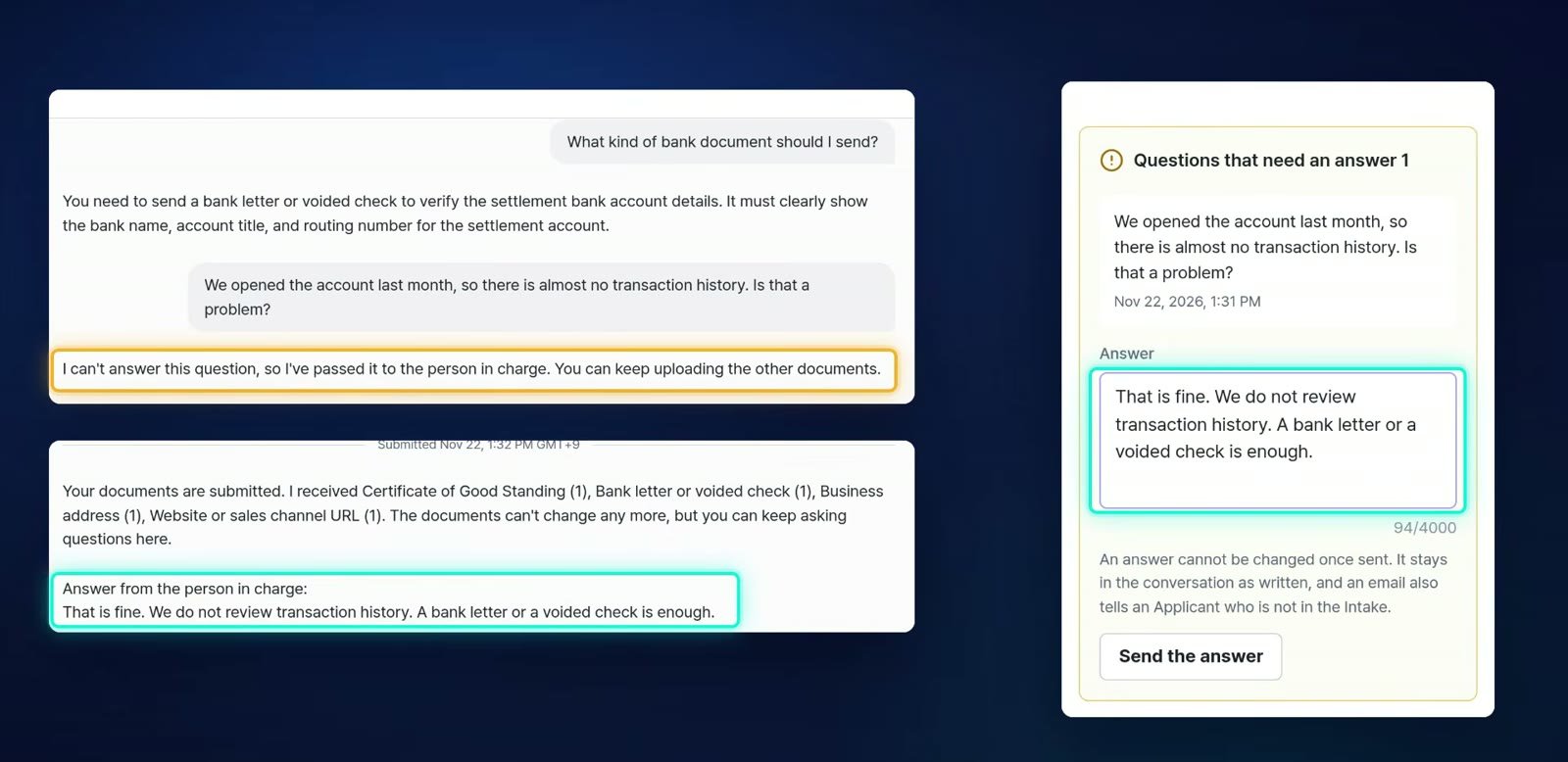
A question without a basis goes to your team, and their answer is passed along unchanged
5. Files or typed text, your choice per item
You choose how each item is collected: as a file or as typed text. A text item, such as the business address, is simply typed into the conversation and recorded against its item.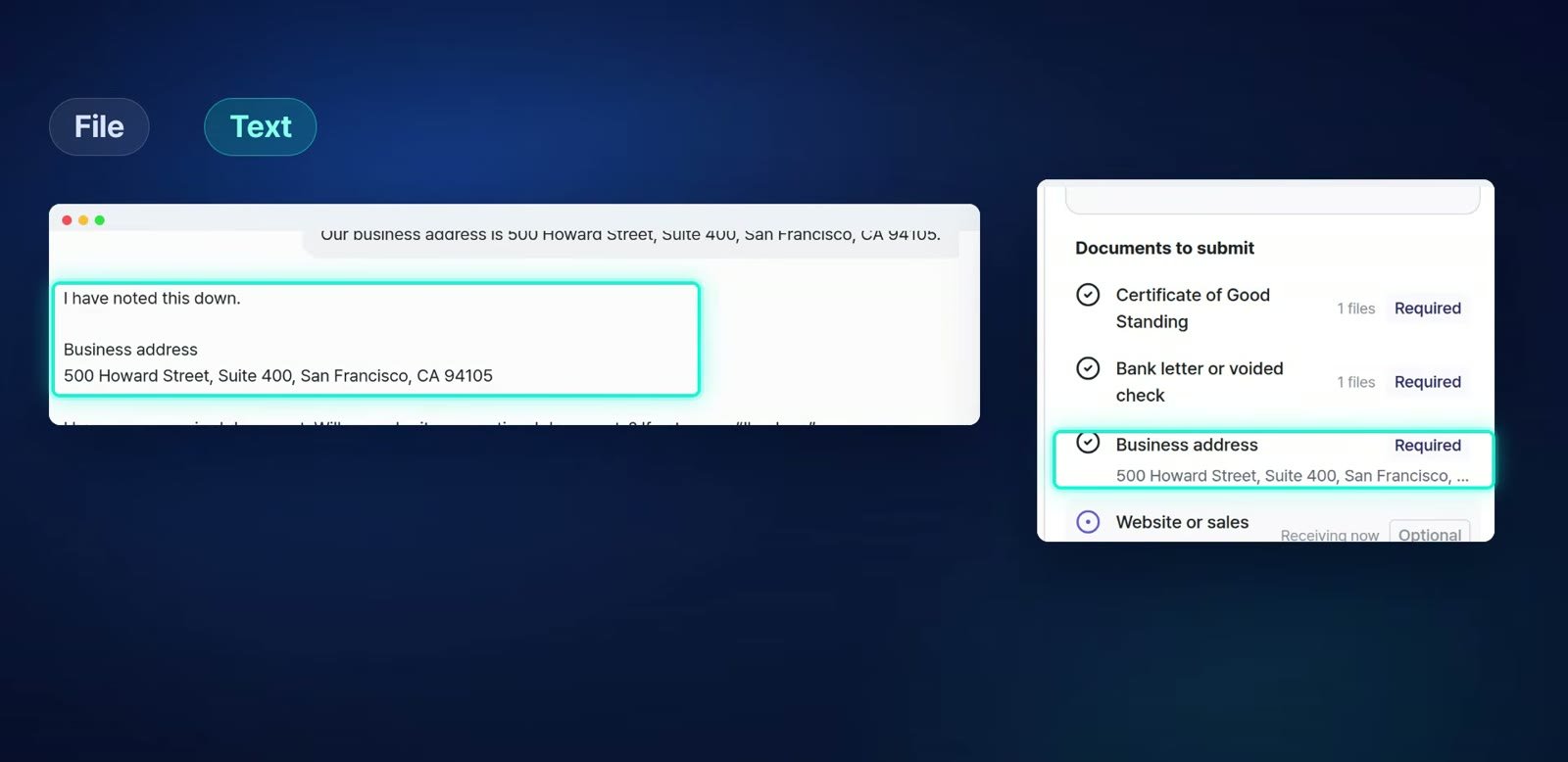
Text items are typed into the conversation and filled in automatically
6. Submitted automatically, reviewed right away
Once every required item is in, the request is submitted automatically and the documents are locked. The review starts right away, without anyone on your team having to move files or press a button.
Once everything is in, the request is submitted and the review begins
See every request in one place
The Info Request screen shows who has submitted what across all open requests: sent, not entered, awaiting submission, and submitted. Reminders go out on schedule to anyone with items still missing, so your team no longer has to chase each applicant by hand.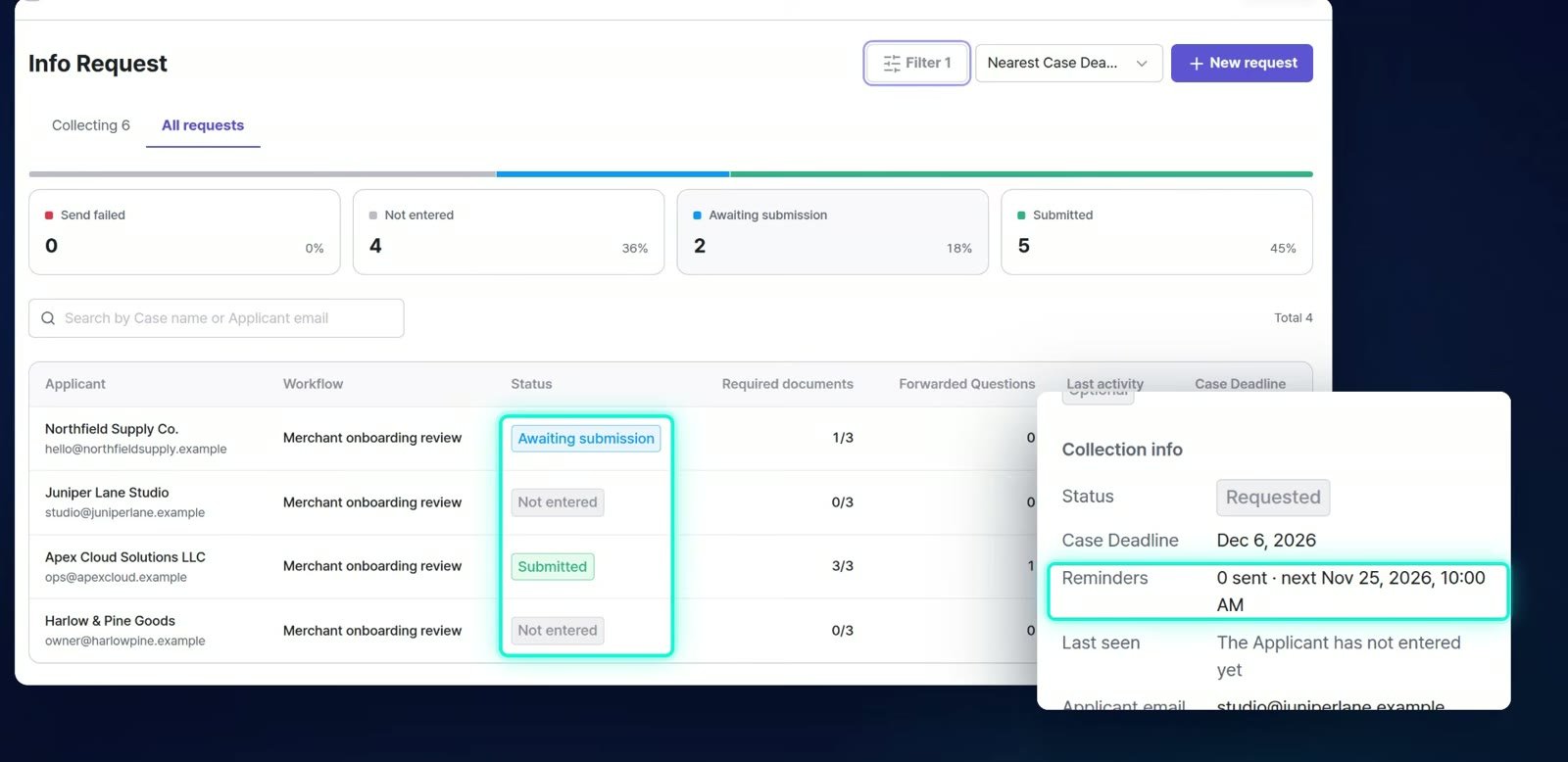
Request status for every applicant in one view, with scheduled reminders
Results with evidence, in the format you defined
After submission, the Review Ops Agent reviews the documents with the same workflow. Every result is kept with its evidence, and anything that needs judgment, such as an account title that does not match the legal entity name, is flagged for your team.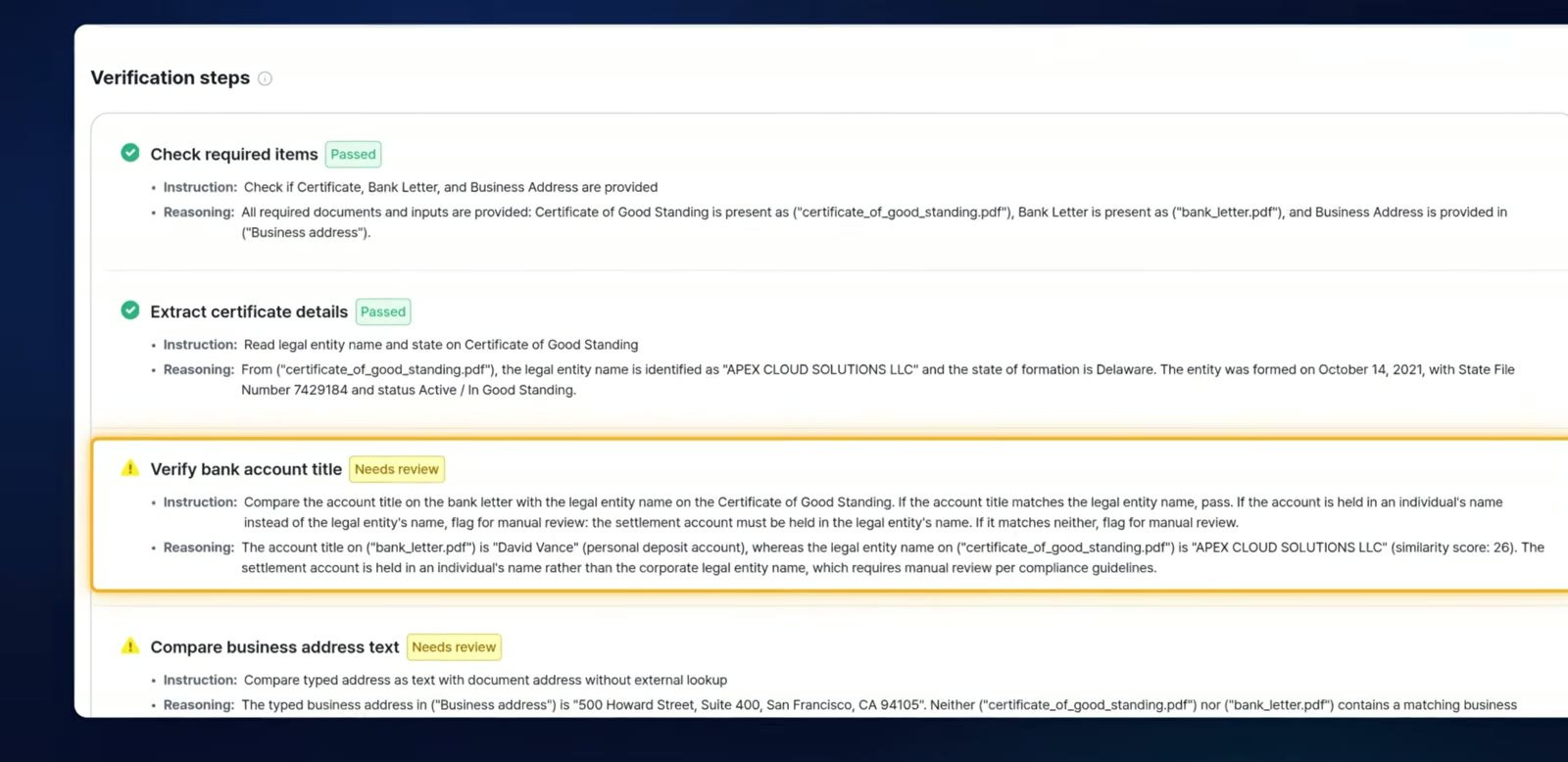
Each verification step shows its instruction and reasoning. Items that need judgment go to your team.
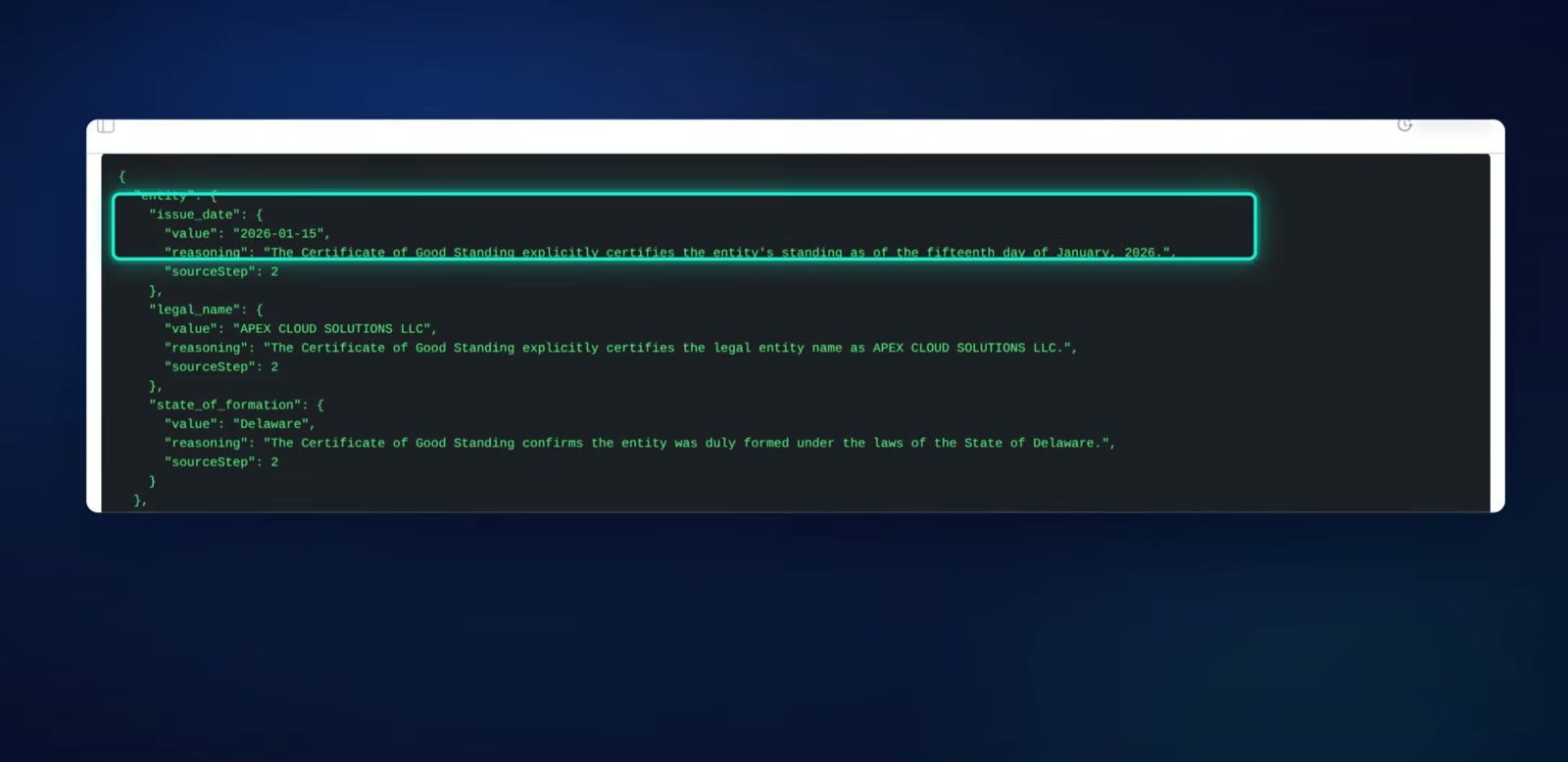
Results organized into a predefined output format, with reasoning for each value
What changes for your team
- One request instead of many emails: An email and a deadline start the whole collection process.
- Fewer questions waiting on you: Omni answers what the checklist covers and hands off only what it doesn’t.
- No sorting or keying: Files and text land on the right item automatically.
- Reviews start sooner: Submission triggers the review, and results come back with their evidence.
Coming soon to ARGOS Omni
Info Request is an upcoming feature of the ARGOS Omni Review Ops Agent. If document collection takes up more of your team’s time than the review itself, let us know. We will show you how your process would run with Omni. 👉 Learn more about ARGOS Omni 👉 Watch the Info Request video 👉 Read more: How the ARGOS Omni Review Ops Agent Handles US Business KYB 👉 Read more: How the ARGOS Omni Review Ops Agent Handles AML Periodic Reviews 👉 Contact us: sales@argosidentity.com